


Dreamina AI: Image&Video Maker
3.035.00 Reviews
App Specs
- Version
- 2.1.2
- Updated On
- License
- Free
- Downloads
- 5,000,000+
- Developer
- Bytedance Pte. Ltd.
- Categories
- Art & Design
- Platform
- Android
Screenshots
 Analysis by AppCompare
I can see Dreamina AI fitting naturally into a household’s shared-device routine: one person wants a quick image for a group chat, someone else is sketching out a birthday invitation, and another is curious about turning a photo idea into a short video. Instead of switching between separate art, layout, and effects apps, you can explore those creative tasks in one place. That convenience is the main reason I’d try it. The trade-off is that an AI studio can invite experimentation without guaranteeing that every result is ready to share, so I’d treat it as a playful starting point rather than a dependable design service.
For instance, if I were helping plan a low-key birthday, I might try a few visual directions for an invitation while another person in the household picked a photo effect for the group chat. The useful result is not necessarily a finished invitation straight from the app; it may simply be a clearer idea of the colors and mood we want. Thinking of it that way helps me decide whether this broad creative toolkit suits the task, or whether a more exact editor would save time.
Making room for different creative habits
I find that a shared creative app works best when people have room to pursue different ideas without treating every draft as a group decision. I’d agree on whose project is active, then invite suggestions while keeping one person responsible for the final choice. That simple distinction makes passing a device around feel collaborative rather than chaotic, and it leads naturally to the practical boundaries worth setting before anyone starts.
One device, several kinds of projects
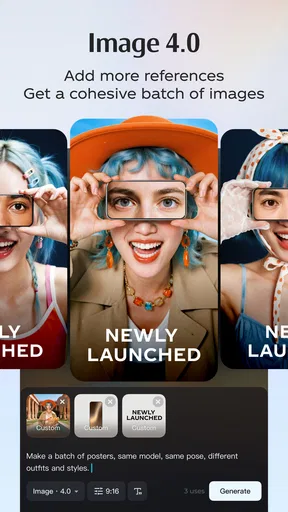
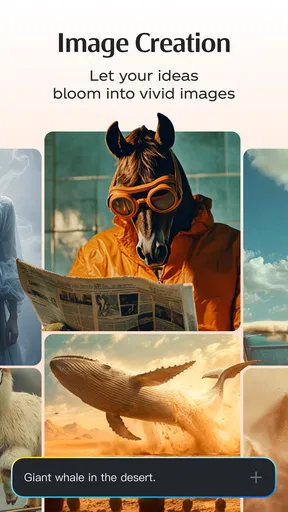
As an Art & Design app from Bytedance Pte. Ltd., Dreamina AI is aimed at people who want to make visual material without beginning with a blank canvas in a traditional editor. Its appeal is the range: image creation, video work, designs, and AI-driven photo effects sit under the same creative umbrella. For a shared phone or tablet, that can make it easier to try a small project together, then hand the device to the next person with a different idea.
A realistic use might be preparing a casual get-together. I could use an image concept as a visual starting point, try a design direction for an invitation, and make a playful effect from a photo for the family chat. Those are related jobs, but they are not identical. Keeping them in one app reduces the temptation to install a different tool for every minor task. It does not mean the app replaces a dedicated photo editor or a carefully controlled layout program; it means it can help a household move quickly from “what if?” to something worth reviewing.
The useful habit is to agree on the project before passing the device around. One person can describe the intended mood, another can suggest what should stay recognizable, and a third can judge whether the result suits the occasion. That small bit of coordination matters because image generators respond to direction, and a vague request often leads to a vague outcome. I get more value when people treat the first output as a draft to react to, not as a finished answer.
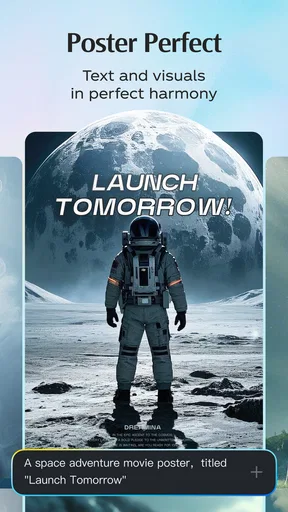
For a quick social post or a personal concept, that draft-first approach is forgiving. For a school handout, a business graphic, or anything with exact wording and precise layout requirements, I would check every detail and consider finishing the work in a conventional design app. Generative visuals can be expressive, but dependable typography and exact placement are different demands from producing an interesting picture.
Worth Reading Before You Choose

Flipboard Shows What News Apps Must Do Beyond the Feed

Switching to Android Auto Means Rethinking Your Driving Routine

Google Calendar Makes a Crowded Week Easier to Manage

Ludo King Makes the Most of the Minutes Between Plans

Baby Panda World Brings Quick Play to Modern Phones, but Its Game Library Feels Busy

ESPN’s Live Game View Makes Following Close Games Easier
Keeping projects and expectations separate
On a shared device, the practical boundary is often not a setting but a routine. I would avoid assuming that one person’s creative work is automatically private from everyone else who can use the same device. Before letting children or guests browse, I’d make clear whose account or session is in use and who is responsible for saving, changing, or sharing a creation. That is ordinary household care, not a claim about a particular privacy feature.
I also recommend separating personal photos from casual experimentation. If the project is just to test an effect, choose an image that everyone involved is comfortable using, rather than reaching for someone else’s portrait without asking. This is especially sensible when several people take turns. A shared device can blur the line between “my picture” and “the picture on this phone,” so a quick permission check prevents an otherwise fun experiment from becoming awkward.
Another useful boundary is deciding when a draft is allowed to leave the app. A child might enjoy generating a dramatic character or transforming a family snapshot, while an adult may be thinking about whether that result should be posted publicly. I’d make the review step explicit: look at the image together, check names and recognizable faces, and agree on the destination before sharing it anywhere. The creative process is more relaxed when everyone knows that making something does not automatically mean publishing it.
There is also a practical distinction between household play and work material. I would not casually use sensitive documents, private photographs, or client imagery as test material in an AI creation workflow unless I had first checked the relevant terms and was comfortable with the handling. That caution applies particularly when a phone is shared, because other users may not know what has been tried or saved. For low-stakes ideas, the app is easier to recommend; for confidential projects, I’d choose a workflow designed around the privacy requirements of that work.
One simple way to keep a session tidy is to decide before starting what the group wants to keep. A useful candidate can be saved or shared only after everyone has agreed, while experiments that do not work need not become a collection of confusing near-matches. This matters most when a device is passed among people with different expectations: one person may see a playful draft, while someone else assumes it is the final version. A quick verbal label such as “just testing” or “keep this one” can prevent that mix-up without relying on a feature the app may not provide.
Taking turns without turning it into a contest
AI image-making can quickly become a cycle of changing a prompt and asking for another version. With several people at the screen, that can be entertaining, but it can also produce a pile of near-duplicates and make it hard to remember which direction anyone liked. I find it more useful to decide on one question per round: should the scene feel warmer, should the subject be more prominent, or should the concept look more like a poster than a photo? A focused revision teaches everyone what changed and keeps the session from drifting.
For a group project, I’d give each person a role rather than letting everyone edit at once. One person describes the idea, another watches for details that must remain accurate, and someone else decides whether the result is suitable for its audience. That approach is particularly helpful for invitations and school-related visuals, where a charming image can still fail if the date, wording, or important subject is wrong. Check those details in a separate final pass instead of trusting an attractive first impression.
One non-obvious trade-off is that a broad all-in-one workspace can encourage people to keep experimenting when a simpler tool would get the job done. If all I need is a crop, a small brightness adjustment, or a clean text overlay, a regular editor may be faster and more predictable. Dreamina AI makes more sense when the household wants to explore an idea or create a distinctive visual treatment. For routine corrections, I would not open a creative studio just because it is already installed.
Another good workflow is to agree on a stopping point. After a few meaningful variations, choose the strongest candidate and inspect it at normal viewing size. Endless rounds can make people chase novelty instead of improving the result. For a casual family graphic, “clear, suitable, and fun” is usually a better target than a perfectly imagined picture that takes the whole evening to approach.
When I want to compare options fairly, I would keep the prompt mostly steady and change just one detail at a time. If I alter the subject, style, setting, and mood all at once, it is difficult to tell which instruction helped. This is a practical way to learn what kind of direction gives the group a better starting point, without turning a relaxed activity into a technical exercise. It also makes it easier to stop when a version is good enough for its intended use.
Age, trust, and a sensible first session
The app is rated for teens, so I would not treat it as a children’s activity by default. A parent or guardian should decide whether its creative tools suit the young person using the device and whether the household’s own rules allow account use and sharing. The age label is a useful signal, but it does not replace an adult’s judgment about a particular child, project, or online audience.
I would start with a low-stakes prompt and stay nearby for the first session, especially if a younger teen is exploring AI-generated imagery. Talk through how to describe a subject without including personal information, and remind them that generated pictures can be misleading or simply unlike the intended result. If the output depicts a real person, check that person is comfortable with the transformation before saving or circulating it. These are sensible habits for any tool that can alter or invent visual content.
Families should also be realistic about spending. The app is free to download, but it offers in-app purchases listed in a broad range from $10 to $900 per item. I would check the purchase flow and the device’s own spending protections before handing it to someone who might tap through prompts quickly. This is not a reason to avoid trying the free app; it is a reason to establish who can authorize purchases before a shared creative session begins.
Dreamina AI has a 3.0 average from around 8,100 ratings, alongside more than 35 written reviews. I read that as a reason to keep expectations measured rather than assume every person will find the experience smooth or every output satisfying. It has passed 5 million installs, which suggests plenty of people have tried it, but popularity is not a substitute for testing it against your own needs. The current version is 2.1.2, and it runs on Android 5.0 or later; those details are helpful when checking an older household device before planning a project.
For a first try, I’d pick a subject that does not depend on exact likeness, sensitive details, or perfect lettering. That lets everyone judge the creative idea itself before deciding whether a more demanding project is worth attempting. If someone asks whether it can make a finished piece suitable for a particular school or work requirement, my answer would be to treat the output as a draft and verify the requirements separately. That expectation is more useful than promising that a generated result will be accurate just because it looks polished at first glance.
Where it fits among creative apps
Compared with a conventional drawing app, Dreamina AI is better suited to someone who wants a generated starting point than someone who wants to control every stroke. Compared with a single-purpose photo-effects app, its broader mix of creative formats can be more convenient when the idea changes from an altered picture to a design or video concept. But breadth brings a compromise: a specialized editor may offer a clearer workflow for retouching, detailed compositing, or exact layout work.
I would choose it for brainstorming a visual theme, making an imaginative image to share with friends, or exploring how a photo might look with a creative treatment. I would choose a standard design tool when alignment, legible text, repeatable templates, or exact brand colors matter. For a polished video project, a dedicated video editor is also likely to be a better fit if the work depends on precise sequencing and hands-on control. The right comparison is not “which app does everything best?” but “which tool matches the part of the job I actually need to do?”
Its free entry point makes a trial accessible, while the in-app purchase range means I would not explore paid options casually on a shared device. The app is intended for teen users, not a substitute for parental oversight, and the presence of generative tools makes a review-before-sharing routine worthwhile. With those boundaries in place, household use can be creative without turning every spontaneous idea into an account, privacy, or spending question.
For someone deciding whether to keep it alongside familiar tools, I’d ask what usually slows their creative process. If the hard part is coming up with a visual direction, an AI-led studio can be a useful place to begin. If the hard part is precise editing after the concept is clear, a conventional editor is probably the better everyday choice. I see the strongest case for using both selectively: explore an idea here, then move to a tool built for careful finishing when the project calls for it.
My household verdict
I’d recommend Dreamina AI to a household that enjoys making visual ideas together and is comfortable treating AI results as drafts. Its strength is the chance to move between image concepts, designs, video ideas, and photo effects without changing creative context. It works best for low-pressure projects where imagination matters more than exact control, and where someone is willing to inspect the result before sharing it.
I would skip it as the main tool for a family that needs precise, repeatable design work, wants complete hands-on control over every edit, or does not want to manage purchase boundaries on a shared device. I’d also be cautious about using it with younger children without an adult deciding the ground rules. For a teen or adult who likes experimenting, the practical recipe is simple: agree on whose session it is, use appropriate images, make one focused revision at a time, and check the final result before it goes anywhere. That makes this creative app a useful household option without mistaking convenience for a guarantee of quality or privacy.
Pros
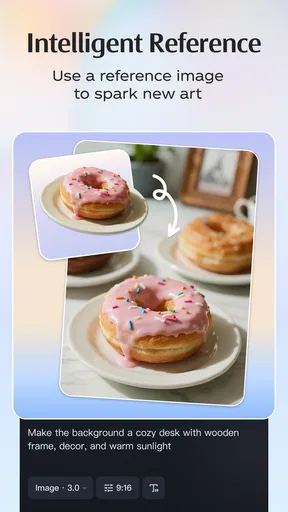
- Turns text prompts and reference images into visual content.
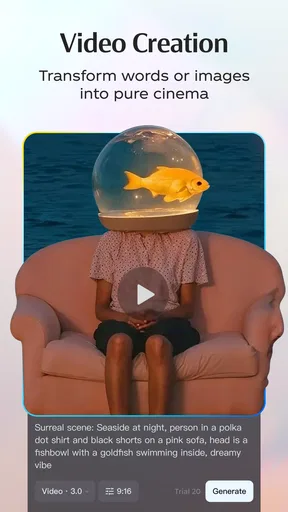
- Includes tools for creating both images and short videos.
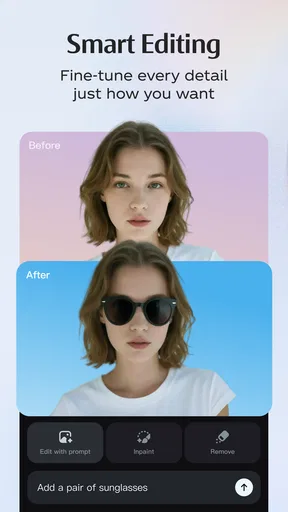
- Offers editing options to refine generated results.
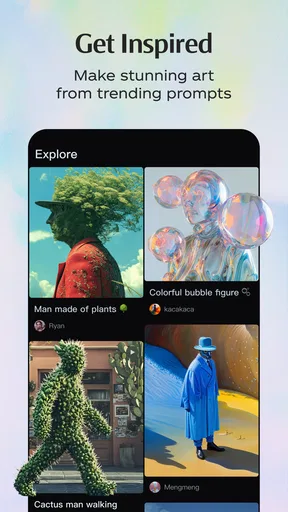
- Useful for exploring multiple concepts without advanced design skills.
- A mobile workflow makes it convenient to create and review content on the go.
Cons
- Generated images may not match a prompt precisely.
- Video generation can take longer than making a still image.
- Results may need several prompt revisions to look right.
- Some features or generation limits may depend on account access.
- AI output can include visual artifacts
- especially in fine details.
FAQs for Dreamina AI: Image&Video Maker
What is Dreamina AI: Image&Video Maker?
Dreamina AI is a creative app for generating and editing images and videos with AI-assisted tools. You can typically start with a written prompt, an uploaded image, or a combination of both, then adjust the result using the options available in the app. Features and workflows may change between versions, so check the current app listing to confirm what is available on your device.
How do I create an image or video in Dreamina AI?
The usual process is to choose an image or video creation tool, describe what you want in a prompt, and select any available style or output settings before generating. Some tools may also let you upload a reference image or edit existing content. AI results can vary even when you reuse the same prompt, so refining the wording and trying different settings may help you get closer to your intended result.
Is Dreamina AI free to use?
The app may offer some features or generation credits without charge, while additional use or certain tools may require payment, a subscription, or another form of credit. Availability and pricing can differ by region and may change over time. Before generating extensively or starting a trial, review the in-app pricing, renewal terms, and credit limits so you know what will be charged and when.
Do I need an account or an internet connection to use Dreamina AI?
AI image and video generation generally relies on online processing, so you should expect to need an active internet connection for core creation features. The app may also ask you to sign in to save projects, manage credits, or access particular tools. Exact requirements can depend on the version and region; check the sign-in screen and app permissions, and avoid entering information you are not comfortable sharing.
Can I use Dreamina AI creations commercially, and are my uploads private?
Commercial-use rights and the handling of uploaded prompts or images depend on Dreamina’s current terms, privacy policy, and the specific feature used. Do not assume that every generated result is cleared for business, resale, or public distribution. Review the official policies before using creations commercially, and avoid uploading sensitive, confidential, or identifying material unless you understand how it may be processed and stored.


